
Copying onto Tab Stock
You can copy onto tab stock by loading it in the paper trays.
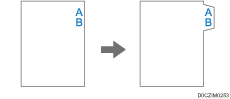
Tab stock is fed starting from the top tab.
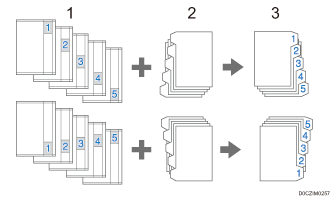
Originals
Tab Stock
Copies
For details about the paper trays in which you can load tab stock, see the following section:
Recommended Paper Sizes and Types
For details about the procedure to load tab stock in the paper trays, see the following section:
Loading Tab Stock into Trays 2 and 3

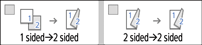
You cannot copy onto tab stock when Duplex Copy is enabled. If Duplex Copy is specified, press one of the following keys to cancel the setting.
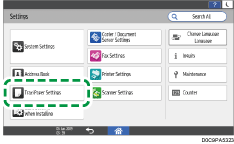
 Press [Settings] on the Home screen.

 Press [Tray/Paper Settings].
 Press [Paper Size/Paper Type]
 (tray name) [Paper Size], and then specify the paper size for tab stock.
 Press [OK].
 Press [Paper Type/Thickness], and then select Tab Stock for "Paper Type".
 Press [OK].
 Press [Home] (
 ) after specifying the settings.
 Press [Copy] on the Home screen.
 Press [Paper Select] and select the tray in which tab stock is loaded.
 Place the original.
 Press [Start].

Check the position of the index tab to avoid cropping the image. If the image extends beyond the index tab, the backs of sheets may get soiled with toner.
When a paper jam has occurred, check the order of originals and tab stock, and then restart copying.