
Viewing the Transmission Result of an Outgoing LAN-Fax
You can confirm the result of a LAN-Fax transmission by e-mail, report, or using Web Image Monitor.
E-mail Transmission Results
You can receive this type of notification when transmission of a document from the machine to the destination device is completed normally.
LAN-Fax Result Notification E-mail
You can receive this type of notification in one of the following cases:
When transmitting a document from your computer to the machine and printing it at the same time
When a transmission failure occurs while transmitting a document from your computer to the machine
LAN-Fax Result Report/Communication Result Report
You can check if transmitting a document from your computer to the machine has been completed normally in the LAN-Fax Result Report. Also, check the Communication Result Report to see if the fax has been transmitted normally from the machine to the destination device.

Configure the machine to enable sending of e-mails in advance.
Receiving a Notification E-mail on a Computer
To receive notifications by e-mail, configure the settings in the driver before sending a LAN-Fax.
 Display the [Devices and Printers] screen.
Windows 10 (version 1703 or later), Windows Server 2019
On the [Start] menu, click [Windows System]
 [Control Panel].
Click [View devices and printers].
Windows 10 (earlier than version 1703), Windows Server 2016
Right-click [Start], and then click [Control Panel].
Click [View devices and printers].
Windows 8.1, Windows Server 2012/2012 R2
On the Charm Bar, click [Set]
[Control Panel].Click [View devices and printers].
Windows 7, Windows Server 2008 R2
On the [Start] menu, click [Devices and Printers].
Windows Server 2008
On the [Start] menu, click [Control Panel].
Click [Printer] on [Hardware and Sound].
 Right-click the LAN-Fax icon, and then click [Printer Settings].
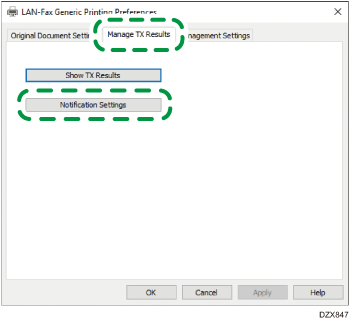
 Select the [Manage TX Results] tab, and click [Notification Settings].
 Select [Always Notify] or [Notify When Errors Occur].
 Select the [By Email] check box under "Notification Method" and specify the destination.
To enter a destination e-mail address manually, select [Specify Destination Email Address] and enter the e-mail address.
To select a destination in the address book of the machine, select [Use Email Address Registered in Device] and enter the registration number.
 Click [OK][OK].

If you have selected the [By Pop-up Message] check box under "Notification Method" in Step 5, the fax transmission result will be indicated in the notification area of your computer.
Always Printing the LAN-Fax Result Report
Specify to print the LAN-Fax result report in [Others] under [Fax Settings].
Press [Settings] on the Home screen.
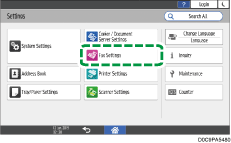
Press [Fax Settings] on the Settings screen.
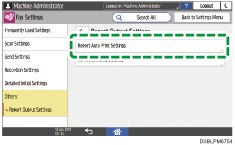
Press [Others][Report Output Settings][Report Auto Print Settings] to display Report Auto Print Settings screen.
Select [Print] for [LAN-Fax Result Report].
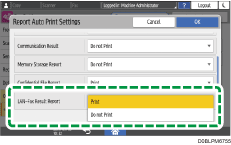
Press [OK].
Press [Home] ( ) after specifying the settings.
Confirming the Transmission Result in Web Image Monitor
Access Web Image Monitor.
From the [Status/Information] menu, click [Job].
Click [LAN-Fax] under [Fax History].
Confirm the transmission history.
You can view up to 1,000 of the latest total results of the transmission and reception history.
Click the [Details] button to view the details.
Click [Logout] and then close the Web browser.