
Creating a Poster by Dividing and Tiling an Original across Multiple Sheets of Paper
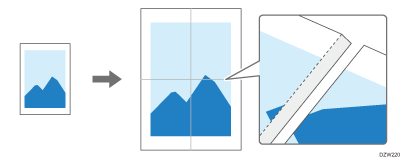
You can create a copy as large as a poster by bonding multiple sheets on which enlarged images are copied (Poster).
Bond them with an overlap of 15 mm (0.59 inch) on the margin of each sheet.

In the following cases, you cannot copy by specifying [Poster]:
When scanning an original using the ADF
When using the paper set in the bypass tray
When specifying Duplex Copies
When Color Mode is set to [Auto Color Select]
 Press [Copy] on the Home screen.
 Press [Original Size] on the Copy screen and select the size of the original from the regular sizes.
If the key is not found, select it from [Original Setting].
 Select [Full Color] or [Black & White].
 Press the paper tray select key and select the paper to use.
 Press [Poster] on the Copy screen.

If the key is not displayed, select it from [2 Sided/Combine].
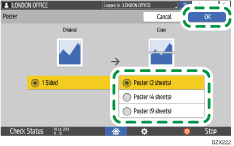
 Specify the number of sheets of paper to use in one poster, and then press [OK].
 Place the original on the exposure glass, and then specify [Original Orientation].
 Press [Start].