Registering/Changing/Deleting User Codes
By registering user codes in the Address Book, you can confirm the print volume (the number of pages printed by the Copier, Fax, Printer, and Scanner functions) on a personal basis.
Disable user authentication or specify User Code authentication.
User Authentication Method
Specifying User Code AuthenticationLog in to the machine as the user administrator on the control panel.
Logging in to the Machine as an AdministratorOn the Home screen, press [Address Book].
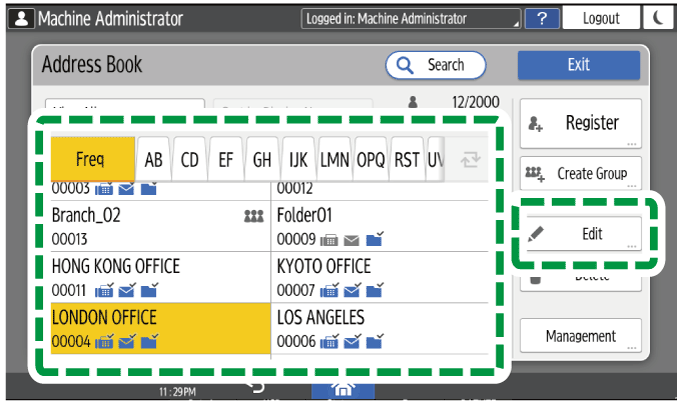
On the Address Book screen, select a user, and then press [Edit].
Press [User Management / Other] tab
 [User Management].
Enter a user code for User Code.
When changing a user code, delete the existing user code and enter a new user code.
When deleting a user code, delete the existing user code and proceed to Step 8.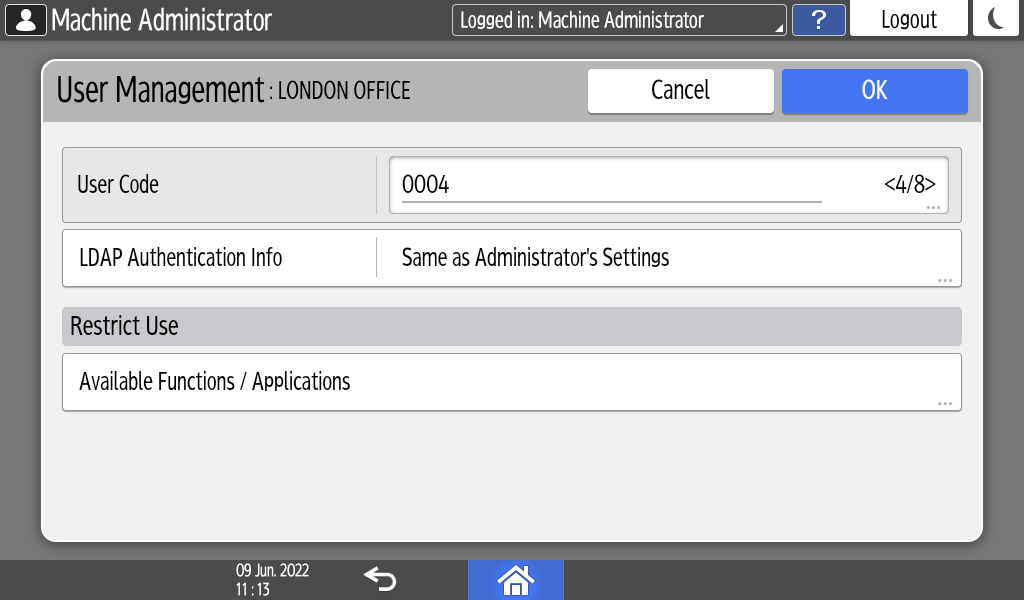
Press [Available Functions / Applications] under Restrict Use, and then select the functions to make available to the user.
Press [OK] several times until the Address Book screen is displayed.
Press [Exit].
When the confirmation dialog box is displayed, press [Close], and then log out of the machine.
To back up the changed contents, press [Go to Backup].

Deleting a user code clears the respective print volume as well.