Scanning a Photo, Name Card, Receipt, and Other Small Sized Original
Place a small sized original on the exposure glass and then specify the size to scan.
Using a ruler, measure the vertical and horizontal sizes of the original.

Press [Scanner] on the Home screen.
Press [Send Settings] on the scanner screen.

Press [Scan Size]
 [Custom Size].
Enter the values of X and Y that you measured in Step 1 and proceed to the next screen.
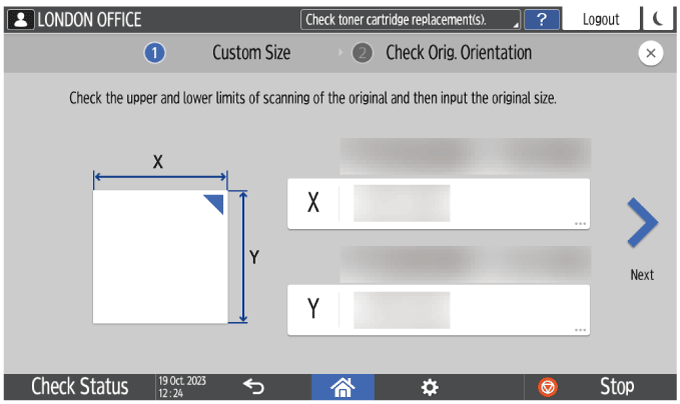
While maintaining the same X-Y orientation as shown, place the original on the machine and press [OK].

Placing an Original on the Exposure GlassPress [Original Orientation] and select [Readable Direction].

Specify the scan settings according to the purpose of the scanned data.
Scanning an Original with Suitable Quality and Density
Specifying the File Type or File Name When Scanning a DocumentTo send the scanned document to an e-mail address, press [Sender] and then specify the sender.
When a logged in user is operating the machine, the logged in user becomes the sender.
Scanning Documents and Sending the Scanned Data by E-mailSpecify the destination on the scanner screen, and press [Start].
Press [Finish Scn] after scanning all the originals.