Assigning Frequently Used Functions to the Function Keys
By assigning frequently used functions to the function keys, you can switch between the modes without returning to the Home screen.

The function keys are not displayed when they are disabled in [Function Key Settings].
Key/Keyboard/Input Assistance
You can change the functions assigned to the function keys using the following procedure:
Press [Settings] on the Home screen.
Press [System Settings].

Press [Display/Input]
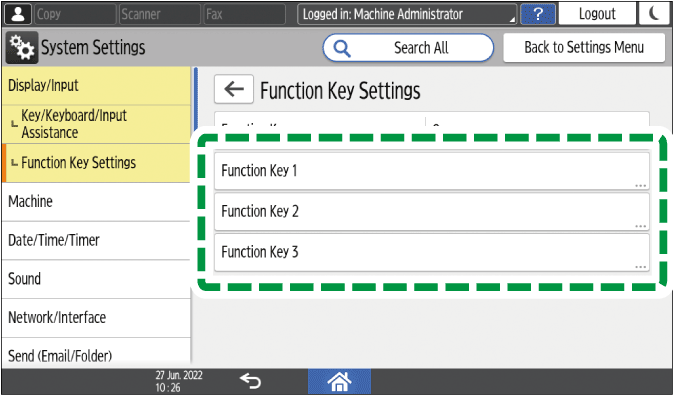
 [Key/Keyboard/Input Assistance] [Function Key Settings].
Press [Function Key 1], [Function Key 2], or [Function Key 3] to specify.
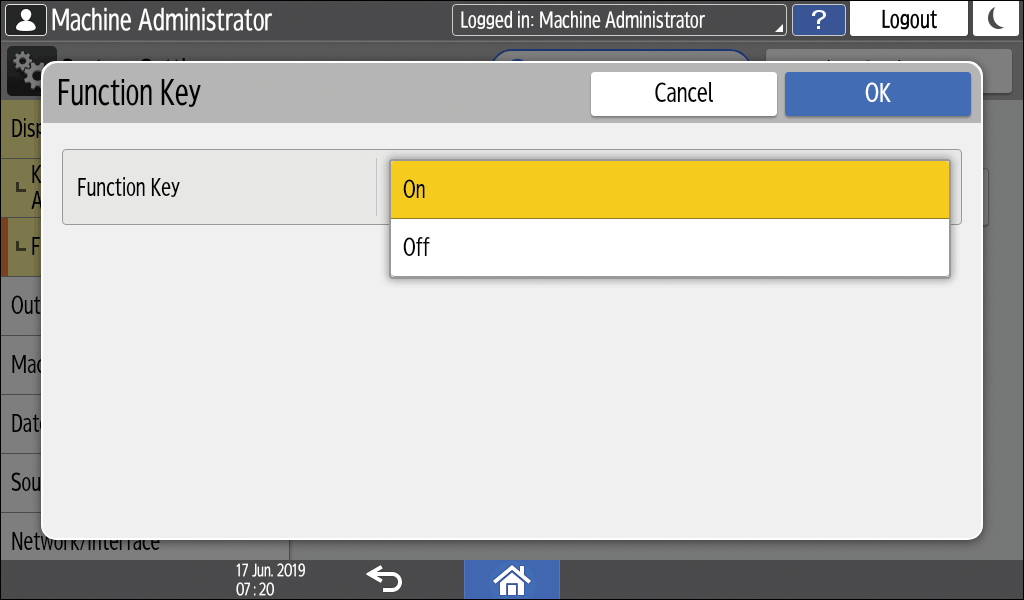
If the function key is inactive, set [Function Key] to [On].
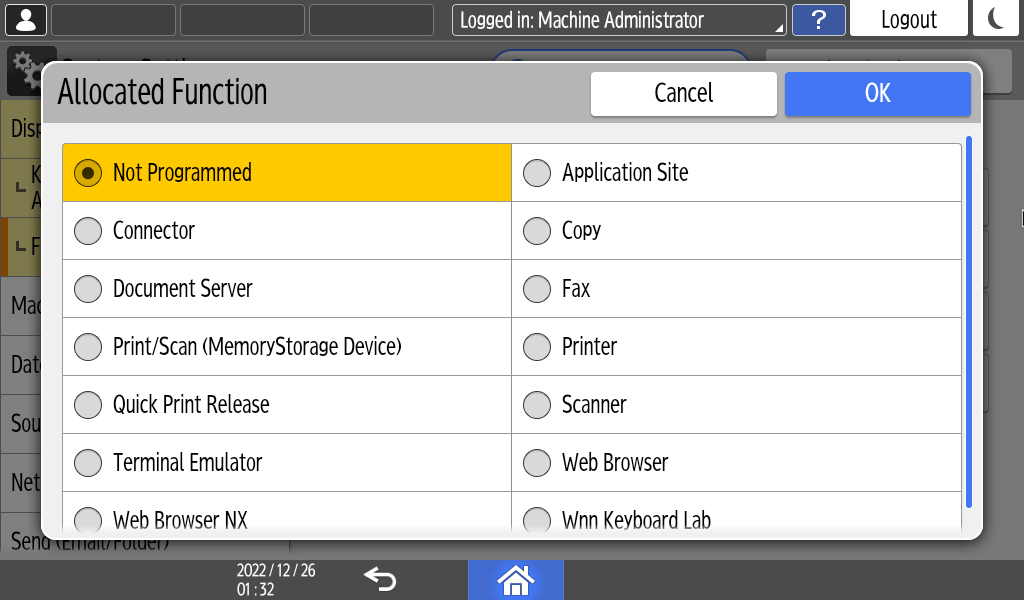
Press [Allocated Function].
Press the button to the right of [Allocated Function].
Select a function from the list shown, and then press [OK] twice.
The settings are complete.
If you want to change the display name, proceed to the steps below.Press [Change Display Name].
Select [Change], and then press [OK].
Press [Display Name].
Press the input field to the right of [Display Name].
Enter the name to display on the function key, and press [OK].
After completing the procedure, press [Home] (
 ).
).