Setting SUB Codes for Transmission
This section explains how to use a SUB Code so that you can send a document as a confidential document or send a document via a transfer station.
A SUB Code is an ID consisting of numbers, #, *, and spaces.
Confidential transmission
Documents sent by confidential transmission are stored in the other party's memory and are not printed automatically. The other party enters the SUB Code to print the received document. Privacy can be mutually protected when transmitting a confidential document intended for a specific receiver, since only the person who knows the SUB Code can print the document.
To perform a confidential transmission, you must specify a machine that has the Personal Box function as a destination.
Transmission via a transfer station
If you send a document via a transfer station, you can reduce costs when you send the same document to multiple remote destinations. Also, you can save time since many documents can be sent in a single operation.
To send via a transfer station, you must specify a machine that has the Transfer Box function as a destination.

Before sending a fax, first register a SUB code for the destination in the address book.
Registering a Fax Number and Send ConditionsObtain the SUB Code of the other party in advance. If the other party does not have a SUB Code, tell them the SUB Code you are using.
A SUB Code cannot be used with Internet Fax, e-mail transmission, and folder transmission.
Press [Fax] on the Home screen.

Place the original in the Auto Document Feeder (ADF) or on the exposure glass.
Setting an Original to Send by Fax on the ScannerPress [Settings] on the fax screen.
Press [SUB/SEP Code Settings].

Select [SUB Code Transmission].
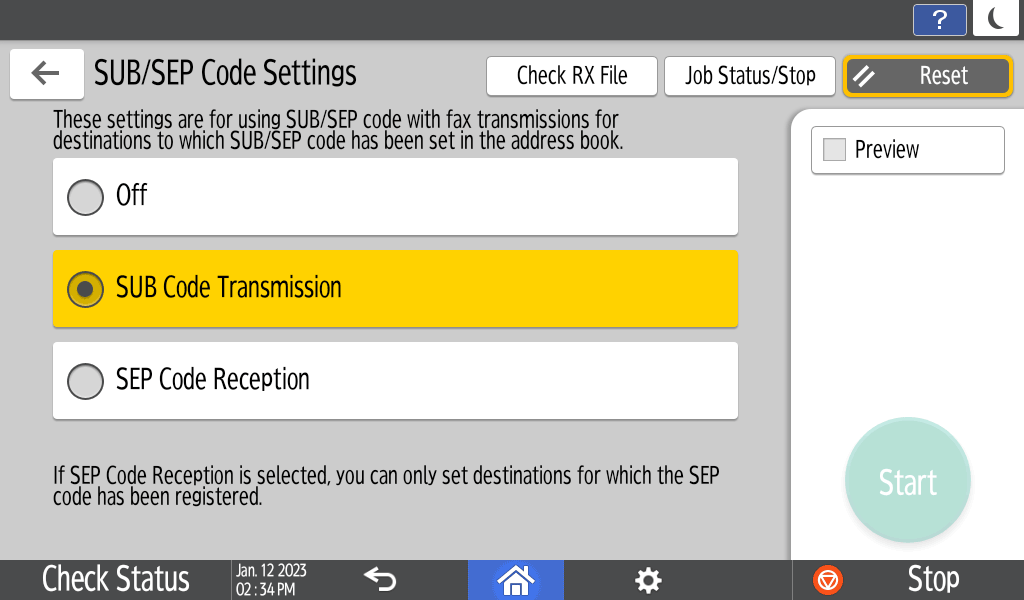
Configure the scan settings.
Sending a Fax at the Image Quality Suitable for the OriginalSpecify the destination on the fax screen.
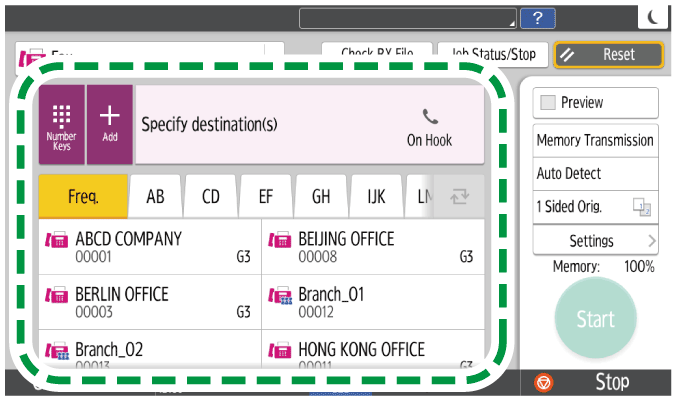
You can check the SUB code settings for the specified destination.
After specifying the destination, press
 .
.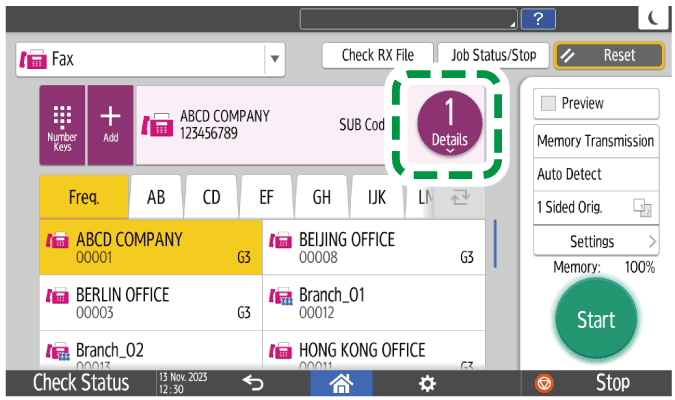
Select the destination for which you want to confirm the settings for the SUB code.
Press [Chk. SEP/SUB Code].
Press [Start].
After scanning the originals, you can check and operate the originals waiting to be sent that are stored in the memory until the transmission is complete.
Confirming and Handling a Document in the Fax Queue

You can change or delete the SUB code, and set the password in the address book.
Changing/Deleting the Registered Data Such as Fax Number