
Viewing and Editing the Information of Documents in Document Server
You can display a preview of a document stored in the document server and also check its size and number of pages. You can also change the user name and file name.

The selected document is accessible even after viewing and editing the information. It is possible to edit the document without entering a password. After completing the procedure, press [Reset] to cancel the selected status.
 On the Home screen, press [Document Server].
 On the document server screen, select the desired folder.
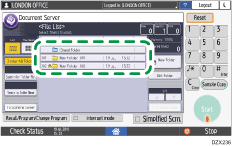
Press [Search by Folder No.] or [Search by Folder Name] to search for a folder.
 Select a document to view or edit the document information.
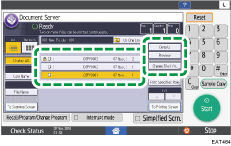
Press [User Name] or [File Name] to search for a document.
If the document is password protected, enter the password and press [OK].
To display a preview of a document
Select the document to preview, and then press [Preview].
See the section below for details about the preview.
After confirming the preview, press [Exit].
To check the size or number of pages of a document
Select the document to check, and then press [Details].
After checking, press [Exit].
To change the settings of a document
Select the document with the settings to change, and then press [Change File Info.]
Select the setting item to change.
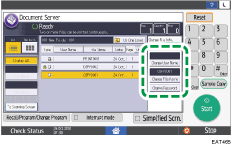
After completing the procedure, press [OK].
 After viewing and editing the document information, press [Reset] to cancel the selected status.