Installing Any Version of RICOH Always Current Technology
Log in to the machine as the machine administrator if administrator authentication is enabled.
Press [Information] on the Home screen.
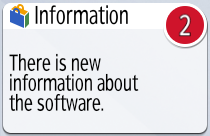
Press [Details] on the information screen of RICOH Always Current Technology.
Press [Install], and then press [Execute Installation].
When installation is complete, the machine restarts.
Log in to the machine as the machine administrator if administrator authentication is enabled.
Press [Application Site] on the Home screen.

Press the RICOH Always Current Technology button for the version you want to install, and then press [Install].
Press [Execute].
When installation is complete, the machine restarts.

If the firmware update screen is displayed after pressing [Install] in step 3, update immediately or specify the time to perform the update. If the firmware update time has been set, the firmware will be updated at the specified time. You can also update the firmware immediately or change the set time.
When firmware update is complete, the machine restarts. After the machine is restarted, open the Application Site from the Home screen, and then perform the installation procedure from Step 1.