Making a Backup Copy of or Restoring User Data
You can save a backup copy of the user data stored on the internal storage (eMMC) of the machine to a USB flash memory device in case of possible data loss. You can restore the stored data to the machine from the USB flash memory device.
When the machine is equipped with the HDD option or with the SSD option, you cannot make a backup copy of or restore the user data.

The data stored on the eMMC may be lost if the power to the machine is kept turned off for an extended period of time. As a guide, when you intend to keep the power turned off for one year or longer, be sure to save a backup copy of the data in advance.
Depending on the size of the user data, backing up or restoring it may take an extended period of time. Make sure that you have sufficient time before making a backup copy of or restoring user data.
Turning the main power off and then on, while the process for backing up or restoring user data is in progress, restarts the machine successfully without corrupting the user data. However, the process for backing up or restoring the user data starts all over from the beginning.
Once a USB flash memory device is used to store a backup copy of the user data, it cannot be used on any other device because the user data is encrypted before it is stored onto the USB flash memory device. To use the USB flash memory device on another device, you must format the memory device to delete the stored user data.
Log in to the machine as the as the machine administrator on the control panel.
Logging in to the Machine as an Administrator
When custom-privileges administrators are registered, you can log in to the machine as a custom-privileges administrator with the Data Management privilege as well.
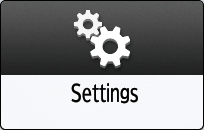
Logging in to the Machine as a Custom-Privileges AdministratorOn the Home screen, press [Settings].
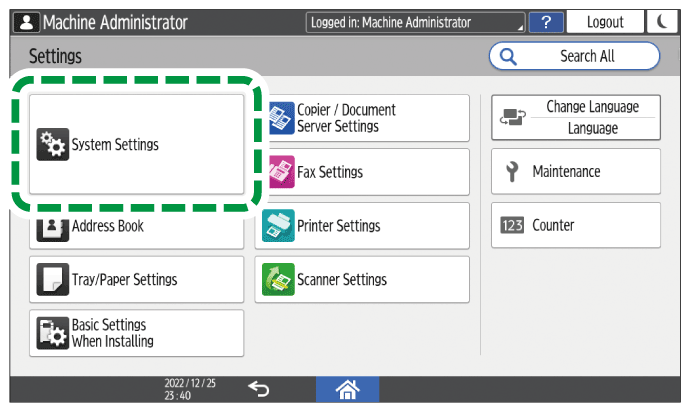
Press [System Settings].
Insert a USB flash memory device into the media slot on the side of the control panel.

Press [Settings for Administrator]
 [Data Management] [Backing Up User Data].
Press [OK].
After the export is completed, press [Exit].
Press [Home] (
 ), and then log out of the machine.
Log in to the machine as the as the machine administrator on the control panel.
Logging in to the Machine as an Administrator
When custom-privileges administrators are registered, you can log in to the machine as a custom-privileges administrator with the Data Management privilege as well.
Logging in to the Machine as a Custom-Privileges AdministratorOn the Home screen, press [Settings].
Press [System Settings].
Insert a USB flash memory device into the media slot on the side of the control panel.
Press [Settings for Administrator]
[Data Management] [Restoring User Data].Press [OK].
After the export is completed, press [Exit].
Press [Home] (
), and then log out of the machine.