Registering/Changing/Deleting a Program that is Component of Frequently Used Settings
You can register a "program" made of a combination of the functions used in the Copy, Fax, Scanner, or Document Server, such as the scan setting, output setting, and address.
You can load the registered program easily from the application screen.
When you press the icon of a program on the Home screen, the machine applies the settings and performs the function registered in the program automatically.
You can register the following number of items as programs.
Copy: 25 items
Fax: 100 items
Scanner: 100 items
Document Server: 25 items
You can prohibit users other than the machine administrator, or a custom-privileges administrator that has equal privileges, from registering a program.

You cannot register the following settings as a program:
Copy
Orientation of [2 Sided/Combine]Fax
[Subject], [Sender]Scanner
[Sender], [PDF Security Settings], Start NumberDocument Server
[Print Specified Page] settings
First, configure the settings to be registered on the Copy, Fax, Scanner, or Document Server screen, and then register them.
On the Home screen, press [Copy], [Fax], [Scanner] or [Document Server].

If the icon is not displayed on the Home screen, add the icon from the application list screen.
Adding a Frequently Used Application or Widget to the Home ScreenSpecify scan and output settings to be registered as a program.

When using the Document Server, specify the settings on the [Print Settings] screen. To display the [Print Settings] screen, select the document to print on the [Print File] screen, and then press [Print Settings].
Press [Menu] (
 ).
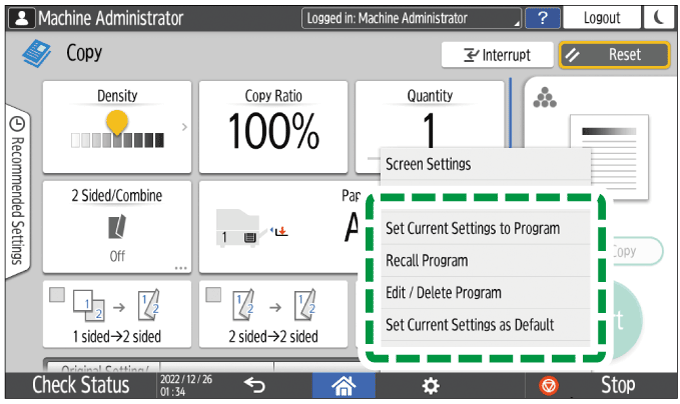
).Press [Set Current Settings to Program].
Press a program number to register the settings.
Enter a program name and select an icon.
Press [OK].
If you selected [Document Server] in Step 1, proceed to Step 9 after pressing [OK].Press [OK].
The selected icon is displayed on the Home screen.
Even if you select [Cancel], you can add shortcuts to the program to the Home screen after the program registration is complete.
Shortcuts to programs stored in Document Server mode cannot be registered to the [Home] screen.Press [Exit].
You can change a part of the program and overwrite it or change the contents and register them as a new program.
On the Home screen, press [Copy], [Fax], [Scanner], or [Document Server].
If the icon is not displayed on the Home screen, add the icon from the application list screen.
Adding a Frequently Used Application or Widget to the Home Screen
When using the Document Server, select the document to print on the [Print File] screen, and then press [Print Settings] to display the [Print Settings] screen.Press [Menu] (
), and then press [Recall Program].Press the program number to be changed.
Change the scan and output settings.
Press [Menu] (
), and then press [Set Current Settings to Program].Select a program number to register the changed settings.
To overwrite the program, select the number of the loaded program, and then press [Program] on the message appears.
To register the contents as a new program, select a number that is not programmed.
Enter a program name and select an icon.
Press [OK].
If you selected [Document Server] in Step 1, proceed to Step 10 after pressing [OK].Press [OK].
Even if you select [Cancel], you can add shortcuts to the program to the Home screen after changing the settings of the program is complete.
Shortcuts to programs stored in Document Server mode cannot be registered to the [Home] screen.Press [Exit].
To change the icon or program name or to delete the program, press [Menu] (
) and operate from [Edit / Delete Program].