How to Use the Help Screen
The machine is equipped with a help function.
Using the help function, you can refer to information about the machine's functions and how to use the machine.
Before using the help function
To see the Help on the control panel, confirm the [Enable JavaScript] is checked in the setting menu of the browser.
Depending on your network environment, you may need to configure proxy settings.
Network/Interface
When you finish the settings, turn off the machine, and then turn it back on.
Using the help function
You can display the [Help] screen by pressing the help icon on the upper right of the screen.
On the [Help] screen, you can refer to FAQs about the screen on which you pressed the help icon.
When you press [Help for Image Quality & Paper Feeding], you can see guidance for print quality and paper.
When you press [View User Guide], you can access the operating manual for the machine.
By pressing [Help for Other Problems], you can view answers to frequently asked questions.
When you want to display the [Help] screen on your smart device, press [QR Code for this page], and then read the QR code displayed on the screen with your smart device.


Depending on the language you are using, the [Help] screen is displayed in English.
You can refer to FAQs while the machine is connected to the Internet. If the machine is not connected to the Internet, you can only refer to [Help for Image Quality & Paper Feeding].
You can easily display help topics you have viewed because they are stored in the browser history.
Example of operation:
Display the [Help] screen in the copier screen.
Operate the machine on another screen, such as the [System Settings] screen.
Return to the copier screen, and then press the help icon.
The help topic you viewed in Step 1 appears.
Because the browser's cache is cleared when the system is reset, the machine cannot display the help topic you referred to last time. To change the length of time that the machine waits before restoring its settings to their default values, use the System Auto Reset Timer setting.
Date/Time/Timer
The help function is enabled as a factory default. If the help function is not necessary, you can disable it by using the following procedure:
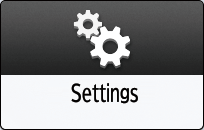
Press [Settings] on the Home screen.
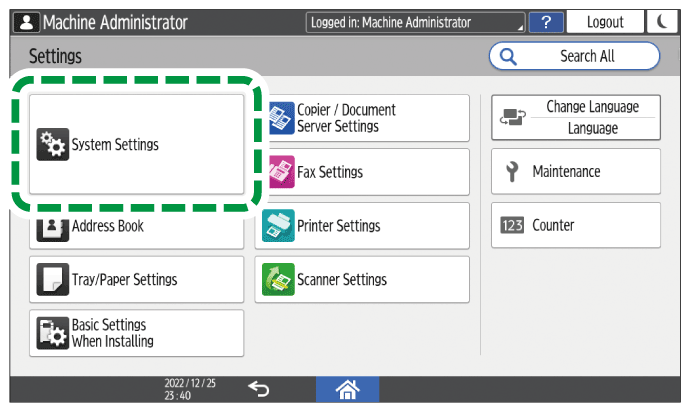
Press [System Settings].
Press [Machine]
 [Others] [Support Settings].
Set [Help Functions] to [Off], and then press [OK].

After completing the procedure, press [Home] (
 ).
).