
How to Use the "Settings"
Press [Settings] on the Home screen to change the settings of the machine, edit the address book, or confirm various information. The "Settings" screen consists of the menus shown below.
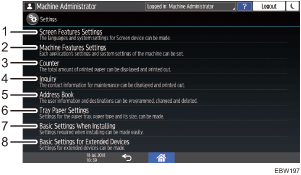
Screen Features Settings
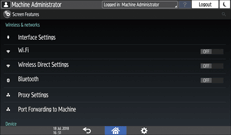
Change the settings of the Wi-Fi function built into the control panel, the sound generated from the control panel, and the language displayed on the screen.
Machine Features Settings
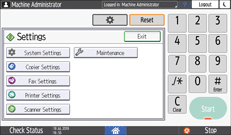
Change the system settings of the machine and the settings for the copy, fax, printer, and scanner functions.
Counter
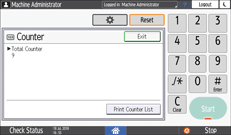
Display and print the total number of sheets printed for each function.
Inquiry
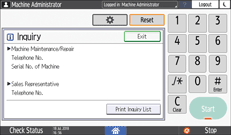
Confirm the contact for requesting repair of the machine or ordering consumables.
Address Book
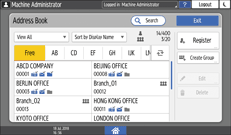
Manage the destination for sending data from the fax or scanner or the authentication information for logging in to the machine.
You can start operation by pressing [Address Book] on the Home screen.
Tray Paper Settings
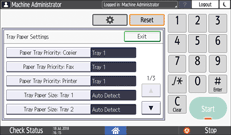
Specify the size and type of paper set in the paper tray.
Basic Settings When Installing
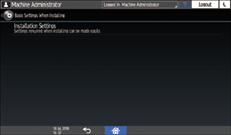
You can configure the settings easily when installing the machine.
On the "Settings" screen, you can specify the settings for the items shown below in Wizard format when the machine is moved to a different location or the environment in which the machine is used changes.
General settings
Network settings
Facsimile settings
On the "Scan to Folder Helper", you can easily specify the destination to send the scanned data to a computer.
Basic Settings for Extended Devices
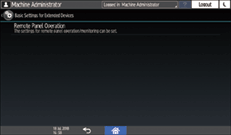
Specify the expanded device settings applications.
This is displayed when the expanded device settings applications with the expanded device settings menu are installed.

If administrator authentication has been set, contact the administrator to change the settings.
When you are finished performing an operation, press [Home] (
 ) to return to the normal screen.