
Placing an Original on the Scanner
Place an original to copy, and specify [Original Orientation] according to the original.
To copy both sides of the paper, confirm the orientation of the original according to how you want the printout to appear.
Basic Original Orientation
Place | Orientation | |
|---|---|---|
Exposure Glass | Place the original face down in a readable orientation. | 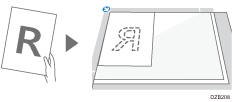 |
ADF | Place the original face up in a readable orientation. | 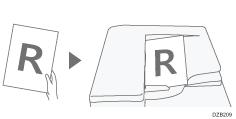 |
If the Readable Orientation Is Not Vertical
When you copy a portrait original larger than A4 or 8 1/2" × 11" (LT) (A3 or 11" × 17"), place it as shown below, and then specify [Original Orientation].
Place | Orientation | |
|---|---|---|
Exposure Glass | Rotate the original clockwise or counter-clockwise 90 degrees and place it face down. | 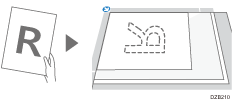 |
ADF | Rotate the original clockwise or counter-clockwise 90 degrees and place it face up. | 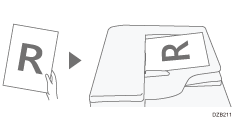 |
 Press [Copy] on the Home screen.
 Place the original.
 Press [Original Orientation] on the Copy screen.

If the key is not displayed, select it from [Original Settings].
When you place the original face up in a readable orientation, this setting is not necessary if [Readable Direction] is displayed on the key. Placing of the original is completed.
 Specify the Original Orientation.
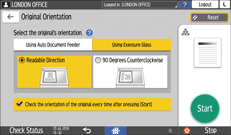
If the display of this screen is not necessary when you press [Start], clear the check box.
Placing of the original is completed.