




 Previous
You can use the following steps to change the screen layout of the Copy, Fax, or Scanner screen.
 Perform a long tap on the appropriate setting button.
When a message is displayed confirming entry into the key sorting mode, press [OK].
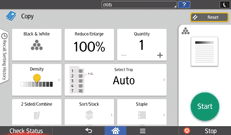
 Drag the button to a new location.
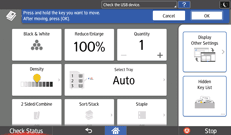
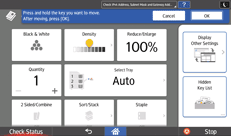
You can perform the following operations from the right-hand part of the screen:
[Hide the Keys]
To hide a setting button, drag the button to this location.
You can use [Hidden Key List] to confirm any hidden setting button, and can redisplay any button by moving it from this location to a new location.
[Move to Other Settings]/[Move to Copy Top Screen] (for the Copy screen only)
To move the Other Settings screen or move back from the Other Settings screen to the Top screen, drag the setting button to this location.
 When you finish changing the screen layout, press [OK].

The Settings screen layout can be changed to Fax or Scanner.
You cannot change the screen layout during machine startup or job execution, or during on-hook or handset use of the Fax.
You can perform the following operations from [Sorting Function] in Menu at the bottom of the screen:
Entering into button sorting mode
Resetting the layout to the factory-set default layout
Viewing the factory-set default layout
You can change the settings by pressing the setting button while viewing the factory-set default layout.
Some setting buttons cannot be hidden or moved to the Other Settings screen.
If [User's Own Customization] under [Screen Features] is set to [Allow] when the authentication function of the machine is enabled, each user can change their own layout. If [User's Own Customization] is set to [Prohibit], only the machine administrator can change a user-specific layout.


