Managing the User Information Registered Automatically
The personal information of users logging in via Windows or LDAP authentication is automatically registered in the Address Book. You can specify to carry over any information that is not automatically registered.
Automatically registered items
Login User Name/Login Password
Registration No.
Name (If this information cannot be obtained, the login user name is registered.)
Key Display (If this information cannot be obtained, the login user name is registered.)

You can specify to delete old user accounts automatically if the amount of data registered in the Address Book has reached the limit.
You can also delete all data in the Address Book by pressing [Address Book]
 [Management] [Delete All Data in Address Book].
You can specify to carry over the information that is not registered automatically of other registered users. Specify the registration number of the user whose data is carried over.
To carry over the data of a specified user, you must activate Windows authentication or LDAP authentication.
Verifying Users to Operate the Machine (User Authentication)
Log in to the machine as the user administrator on the control panel.
Logging in to the Machine as an Administrator
When custom-privileges administrators are registered, you can log in to the machine as a custom-privileges administrator with the Address Book privilege as well.
Logging in to the Machine as a Custom-Privileges AdministratorOn the Home screen, press [Address Book].

On the Address Book screen, press [Management].
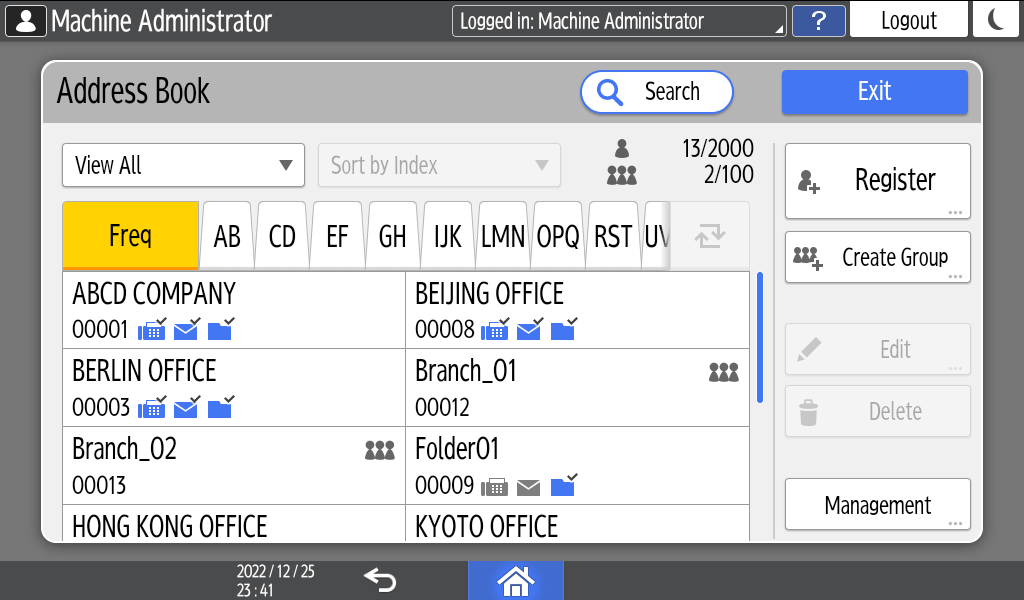
Press [Data Carry-Over Setting for Address Book Auto-Registration] under Address Book Management.
From the list next to Data Carry-over, select [On], and then enter the registration No. of the user whose data is carried over.
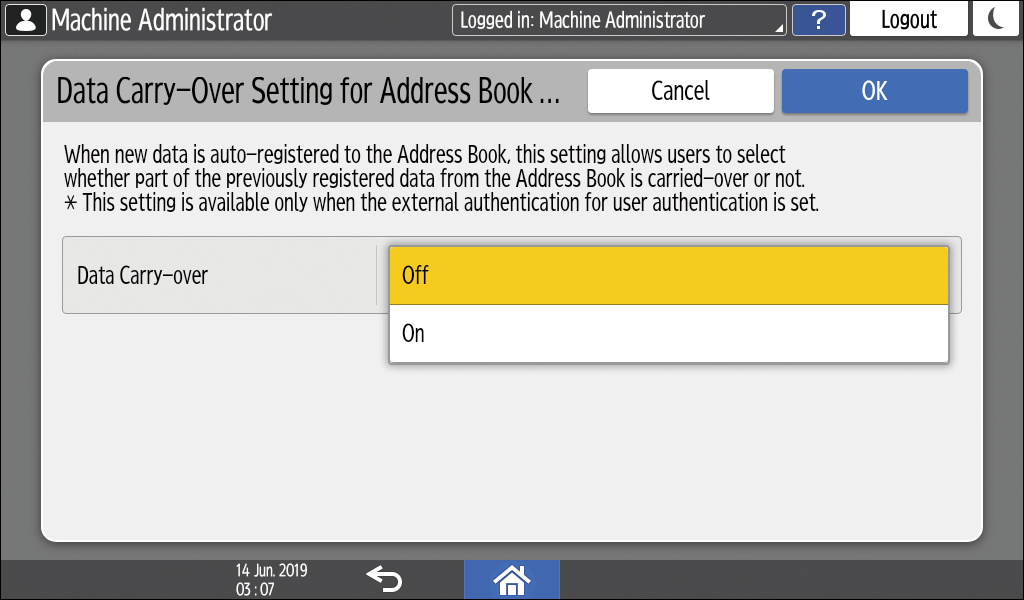
Press [OK].
Press [Exit] twice.
When the confirmation dialog is displayed, press [OK] to log out of the machine.
You can delete old user accounts automatically to register a new user.
To delete data in the Address Book automatically, you must activate Windows authentication or LDAP authentication.
Verifying Users to Operate the Machine (User Authentication)
Log in to the machine as the user administrator on the control panel.
Logging in to the Machine as an Administrator
When custom-privileges administrators are registered, you can log in to the machine as a custom-privileges administrator with the Address Book privilege as well.
Logging in to the Machine as a Custom-Privileges AdministratorOn the Home screen, press [Address Book].
On the Address Book screen, press [Management].
Press [Auto Delete User in Address Book] under Address Book Data Deletion.
Select [On].
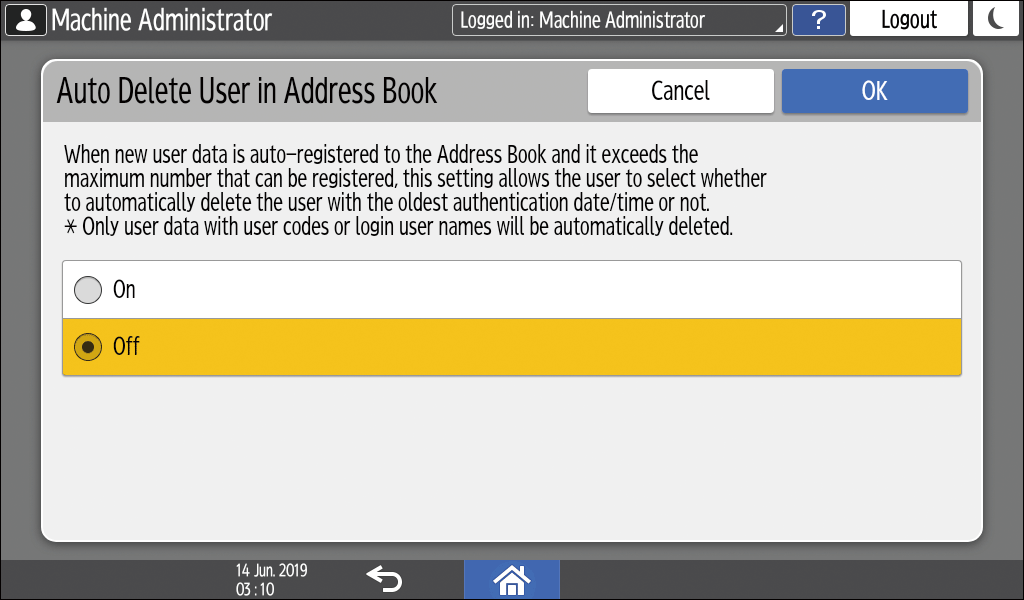
Press [OK].
Press [Exit] twice, and then log out of the machine.