Deleting an Unnecessary Job from the Print Queue
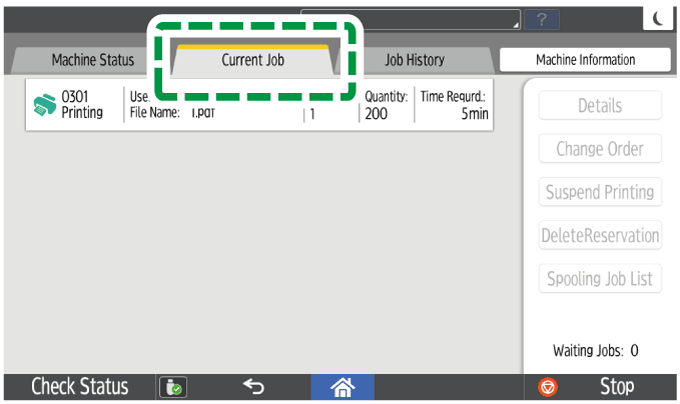
Press [Check Status] to display the screen, and then delete a job no longer needed on the [Current Job] tab.
Press [Check Status].
Select the [Current Job] tab.
Select the job to delete in the print queue, and then press [Delete Reservation].
To delete more than one job, select all jobs to delete, and then press the key.Press [Delete]
 [Check Status].

You can also delete a job on the job list screen. During execution of a job, press [Stop] and [Display Job List] to display the job list screen. Perform the operations from Step 3.
On the job list screen, you can delete all jobs easily by pressing [Delete All Jobs].
Only the jobs of login users are displayed when user authentication is enabled.