


 Previous
 Load envelopes in the paper tray.
About how to load envelopes, see Paper Specifications and Adding Paper for details .
.
 Display the initial settings screen.
When using the standard operation panel
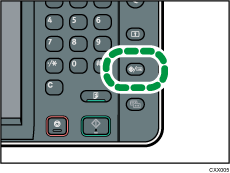
Press the [User Tools/Counter] key.
When using the Smart Operation Panel
Press the [Home] key on the top left of the control panel. Flick the screen to the left, and then press the [User Tools] icon (
 ) on the Home screen 4.
 Press [Tray Paper Settings].
 Select the paper size setting of the paper tray in which the envelopes are loaded.
 Select the envelope size, and then press [OK].
 Press [
 Next].
 Select the paper type setting of the paper tray in which the envelopes are loaded.
 Press [Envelope] in the "Paper Type" area, and then select the appropriate item in the "Paper Thickness" area.
 Press [OK].
 Close the initial settings screen.
When using the standard operation panel
Press the [User Tools/Counter] key.
When using the Smart Operation Panel
Press [User Tools/Counter] (
 ) on the top right of the screen.


