


 Previous
 Display the initial settings screen.
When using the standard operation panel
Press the [User Tools/Counter] key.
When using the Smart Operation Panel
Press the [Home] key on the top left of the control panel. Flick the screen to the left, and then press the [User Tools] icon (
 ) on the Home screen 4.
 Press [Address Book Mangmnt].
 Check that [Program / Change] is selected.
 Select the name whose IP-Fax destination you want to register.
Press the name key, or enter the registered number using the number keys.
 Press [Fax Dest.].
 Press [Select Line], and then select [H.323] or [SIP].
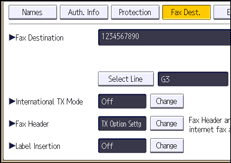
 Press [OK].
 Press [Change] under "Fax Destination".
 Enter the IP-Fax destination.
 Press [OK].
 Press [OK].
 Press [Exit].
 Close the initial settings screen.
When using the standard operation panel
Press the [User Tools/Counter] key.
When using the Smart Operation Panel
Press [User Tools/Counter] (
 ) on the top right of the screen.

To register the name, see Registering User Information
 .
.For details on how to access System Settings, see Accessing User Tools
.When using the Smart Operation Panel, you can display the Address Book screen by pressing the [Address Book Management] icon on the Home screen 4.


