


 Previous
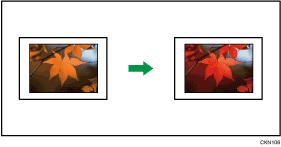
Copies by changing a certain color in the original to another color. Up to four colors can be converted at the same time.
 Press [Full Color].
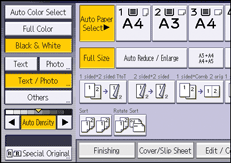
 Press [Edit / Color].
 Press [Color].
 Press [Convert Color].
 Select any one item from [Conversion 1] to [Conversion 4].
 Select the color to be converted.
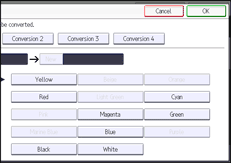
 Select the new color.
You can adjust the density of the color in four steps.
To select user color, press [User Color], and then select the color.
To change two colors or more, repeat Steps 5 to 7.
 Press [OK] three times.
 Place the originals, and then press the [Start] key.

The full color counter values will increase.
The width of the color to be converted can be adjusted in five levels. When the width of the color is set to [Wider] under [Color Sensitivity] in User Tools and red has been specified, colors close to orange and purple will be converted. You can change the setting. For details, see Adjust Color Image
 .
.User colors should be registered in advance. For details about how to register a user color, see Registering User Colors
.


